PC Version Guide
1. How to Register an AscendEX Account
Enter ascendex.com to visit AscendEX official website. Click on [Sign Up] in the upper right corner for registration page, you can choose to sign up using an email address or a phone number.
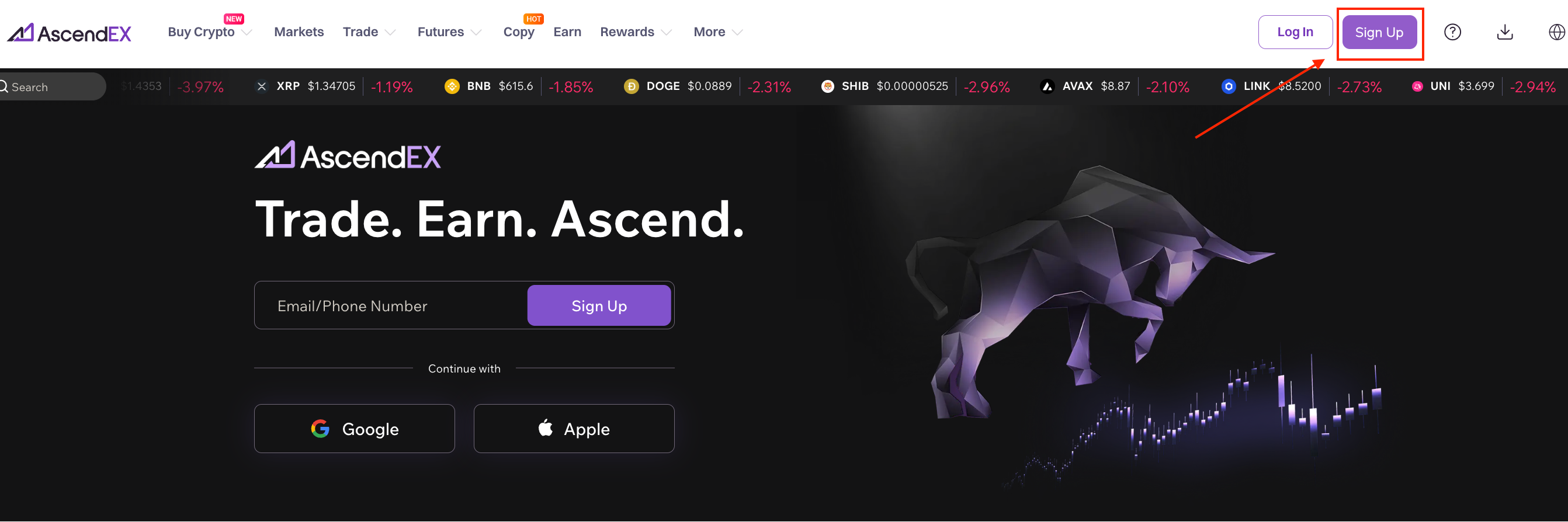
(1) Register with Email Address
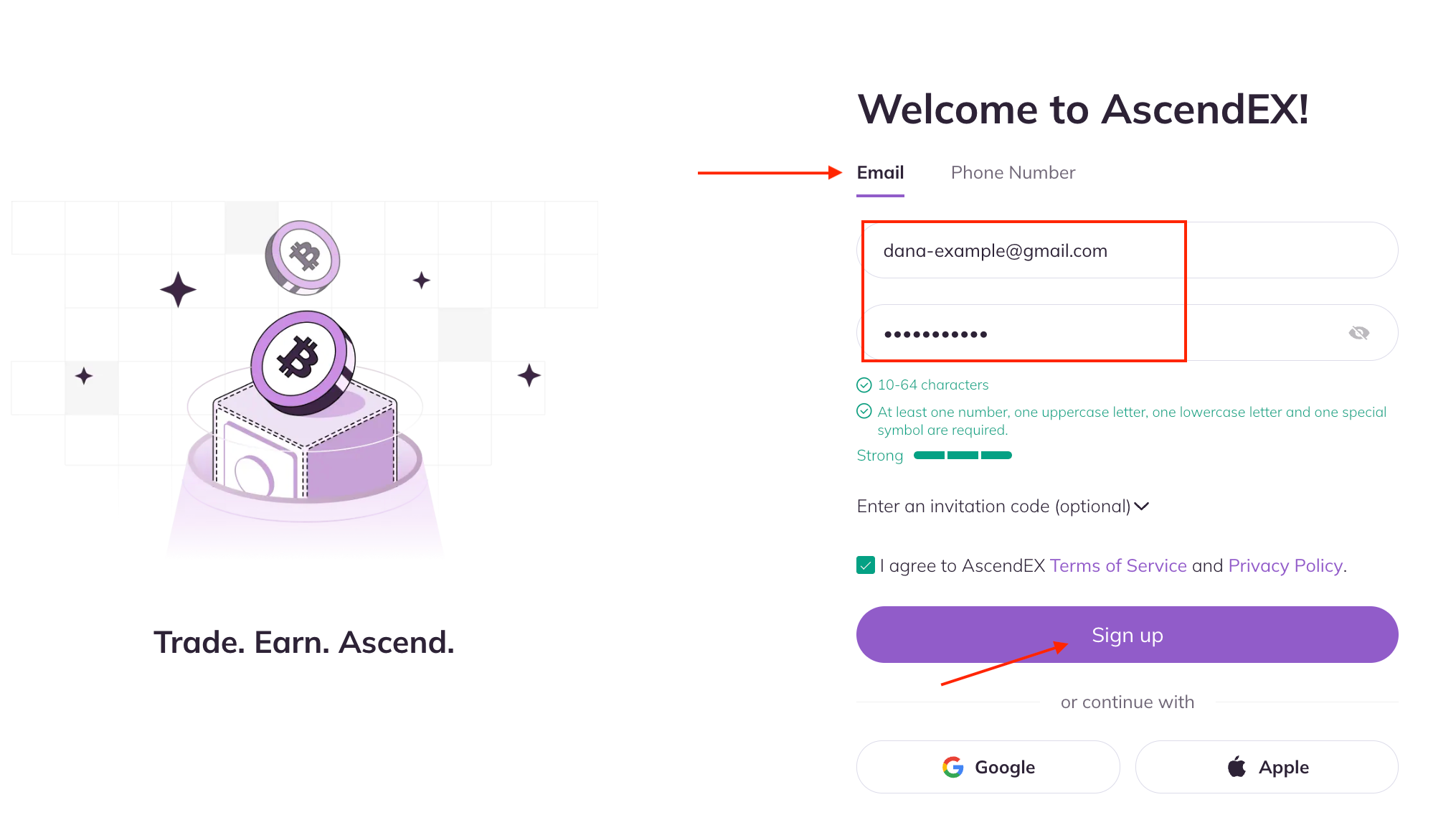
- On the registration page, click on [Email], enter your email address, set the password, enter invitation code (optional); Read and agree to Terms of Service and Privacy Policy, then click [Sign up] to verify your email address.
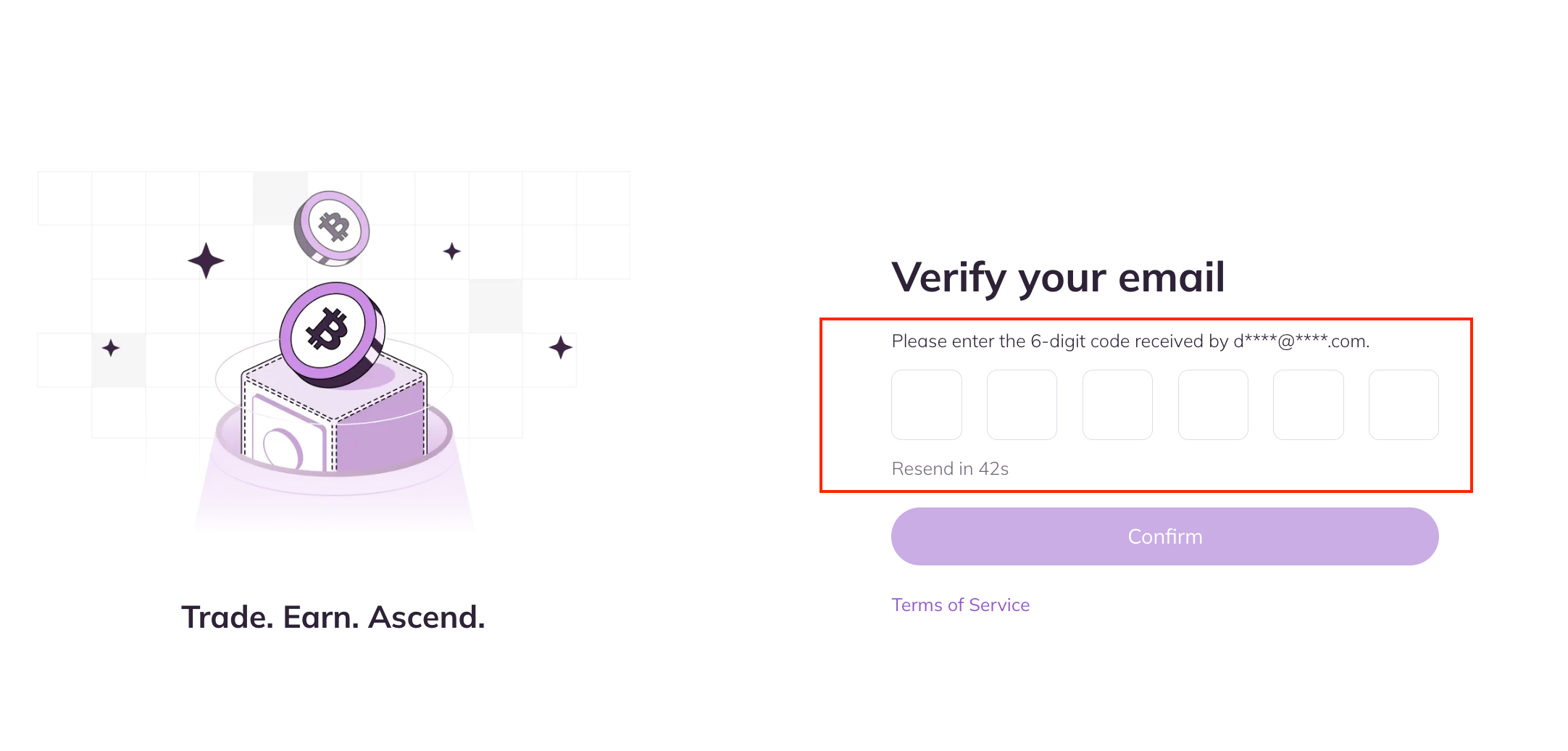
- On the Security Verification page, enter the email verification code sent to your mailbox and click on [Confirm] to complete the registration. Now you are able to log in to start trading!
(2) Register with Phone Number
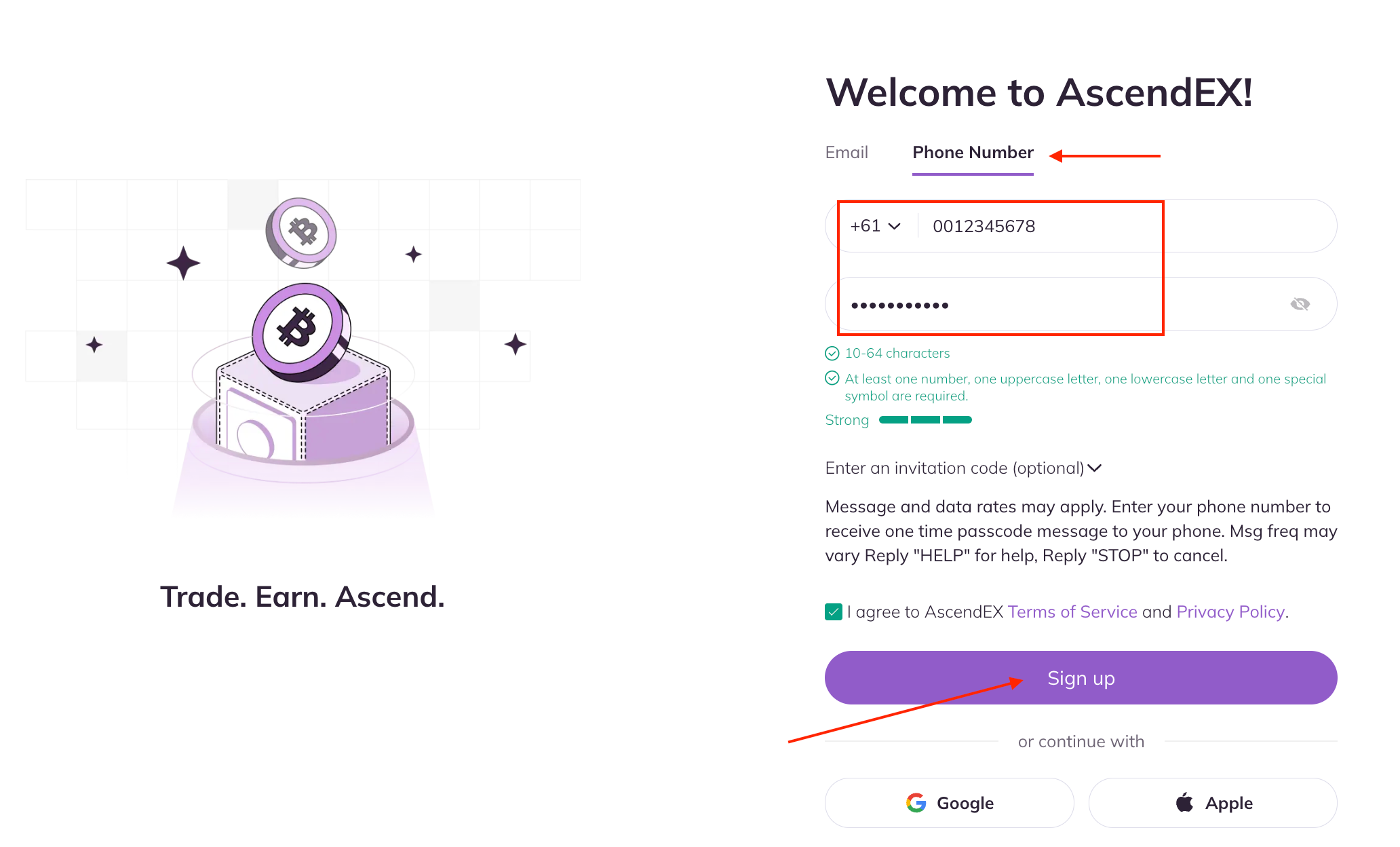
- On the registration page, click on [Phone Number], enter your phone number, set the password, enter referral code (optional); Read and agree to Terms of Service and Privacy Policy, then click [Sign up] to verify your phone number.
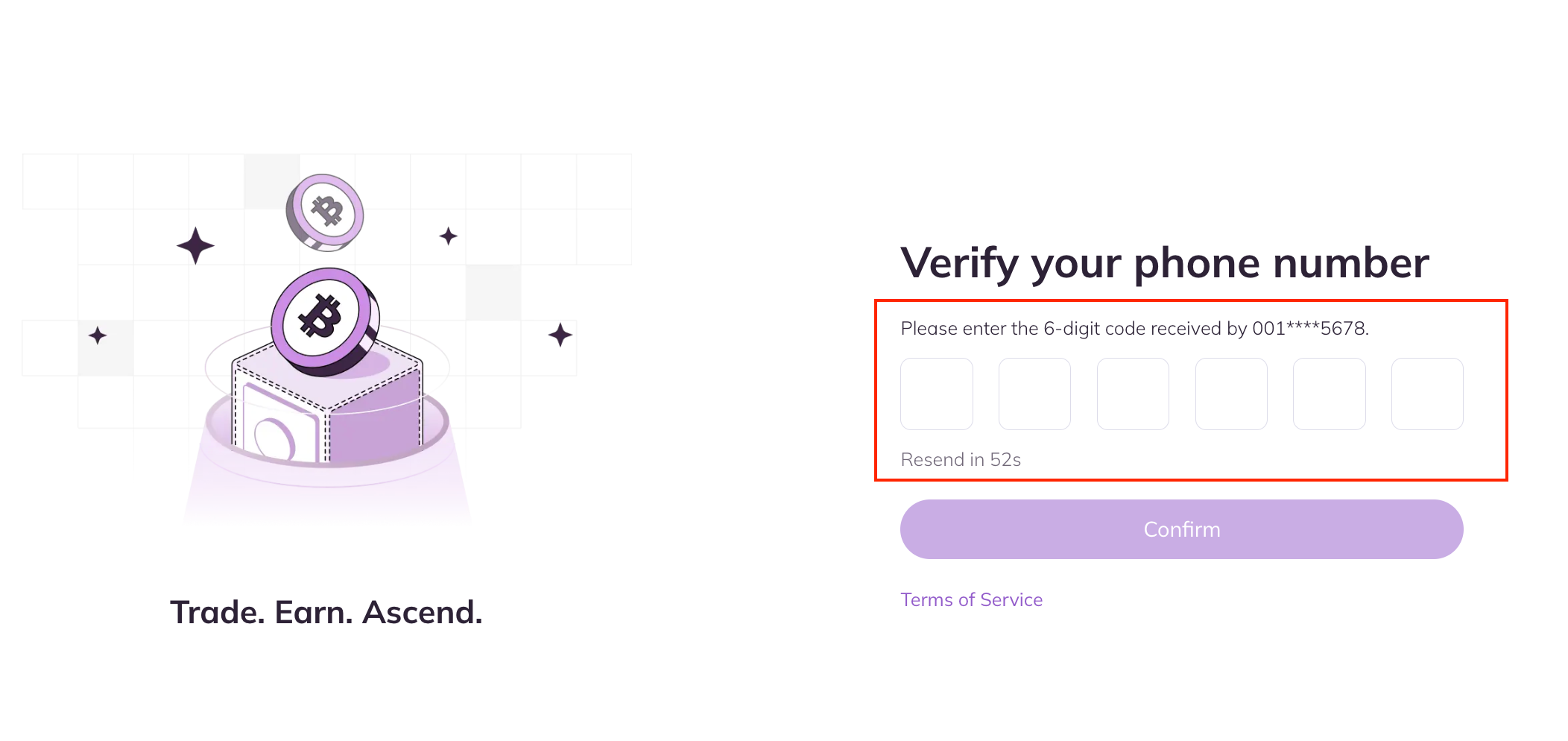
- On the Security Verification page, enter the verification code sent to your phone, and click on [Confirm] to complete the registration. Now you are able to log in to start trading!
2. How to Log in to Your AscendEX Account
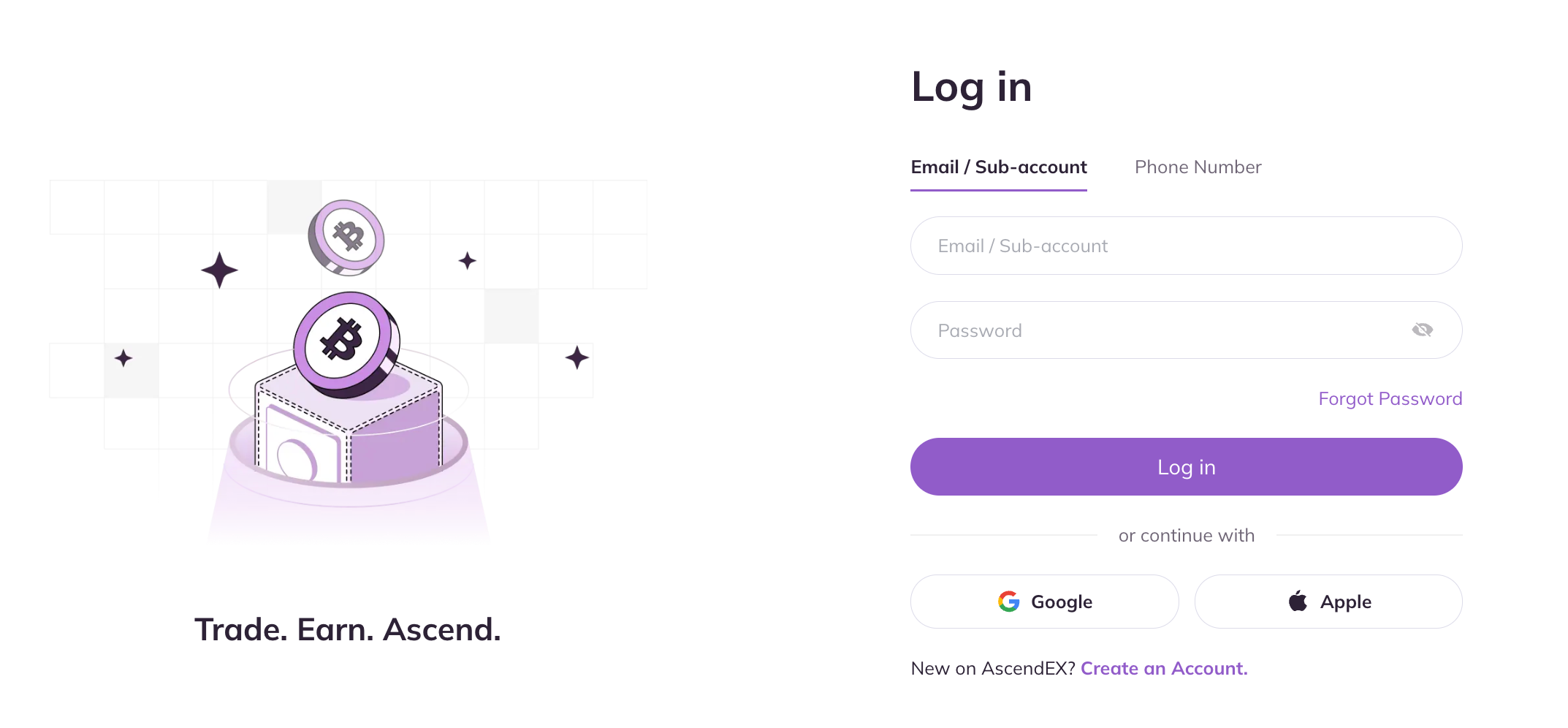
- Enter ascendex.com to visit AscendEX official website. Click on [Log In] in the upper right corner for login page.

- On the login page, you can choose to log in using an email address or a phone number. Taking email registration as an example, enter your email address and password, then click [Log in] to access the official website.
3. How to Complete KYC Verification
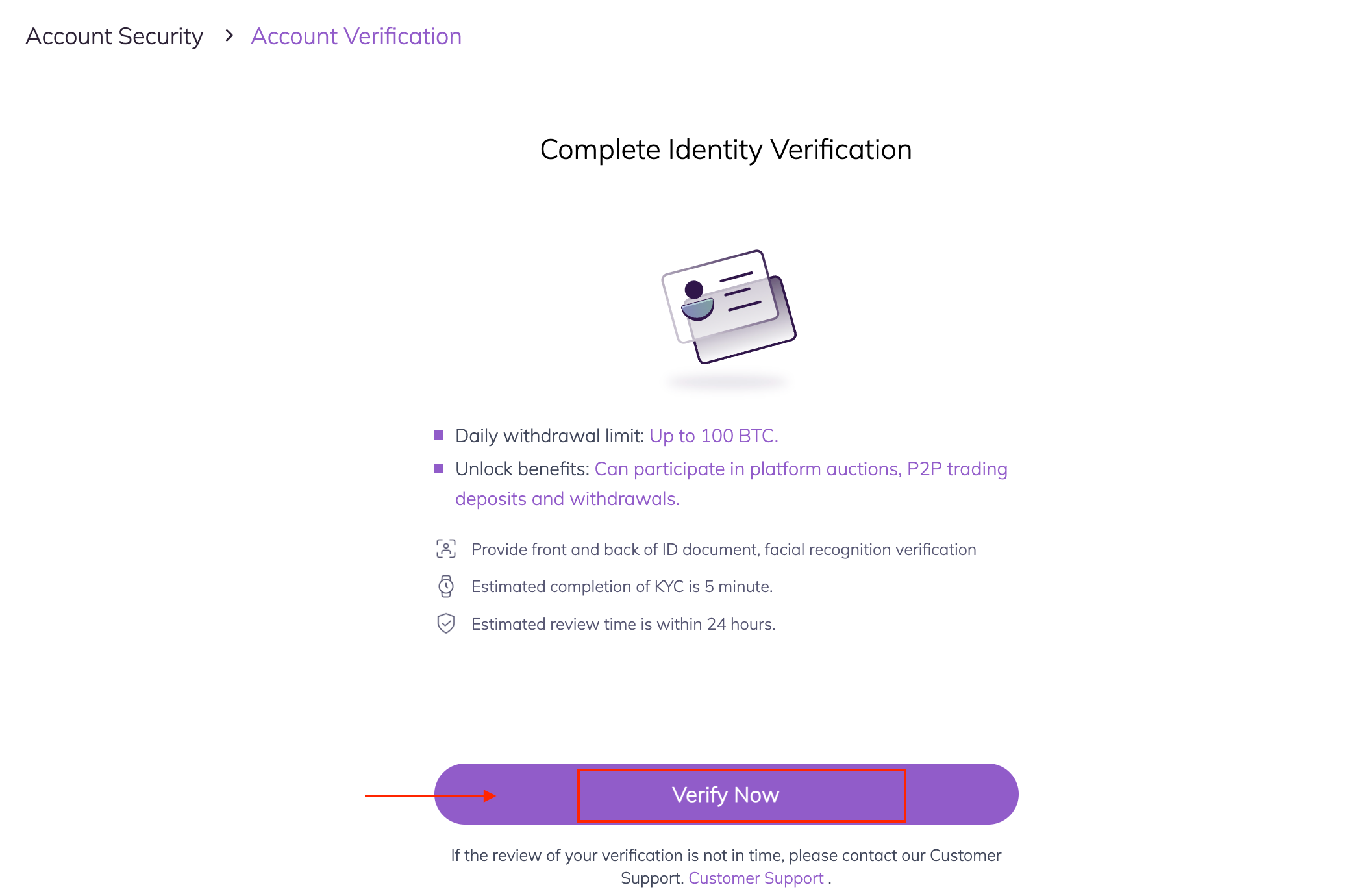
- Click the profile icon in the upper right corner of the page to enter the Account Verification page.
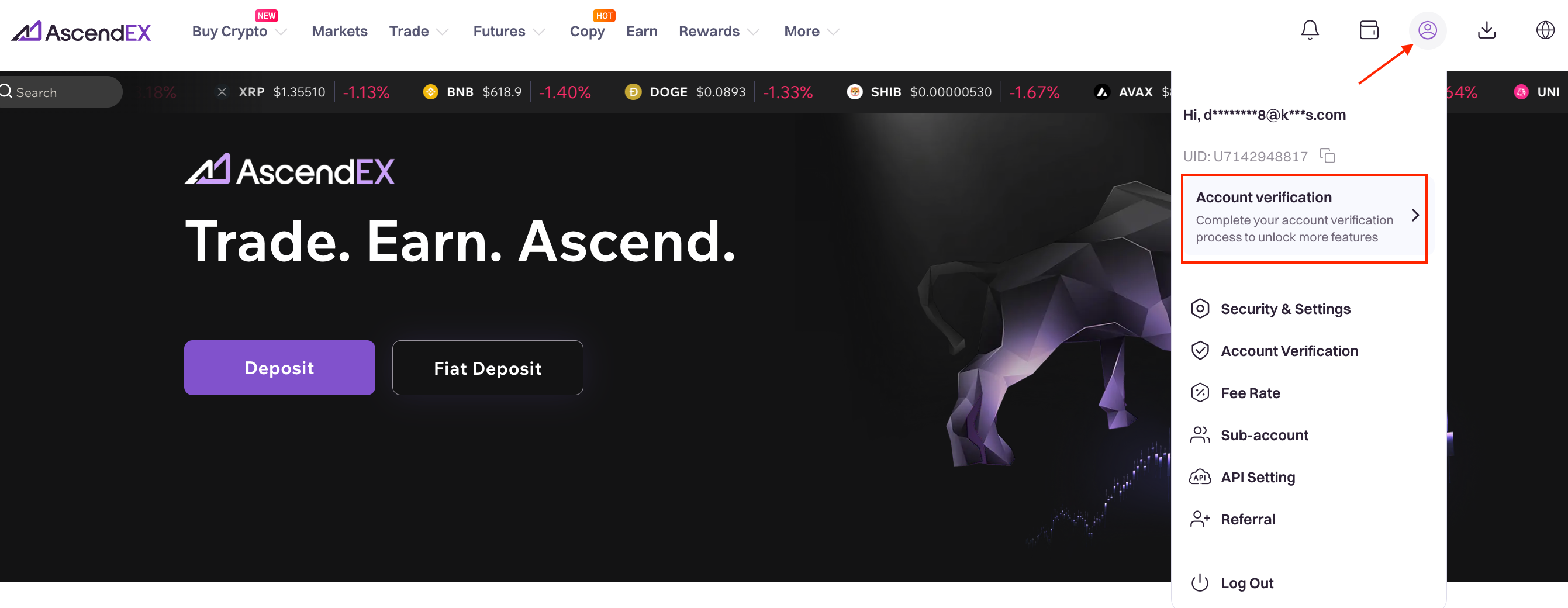
- Click [Verify Now] to start the verification process.
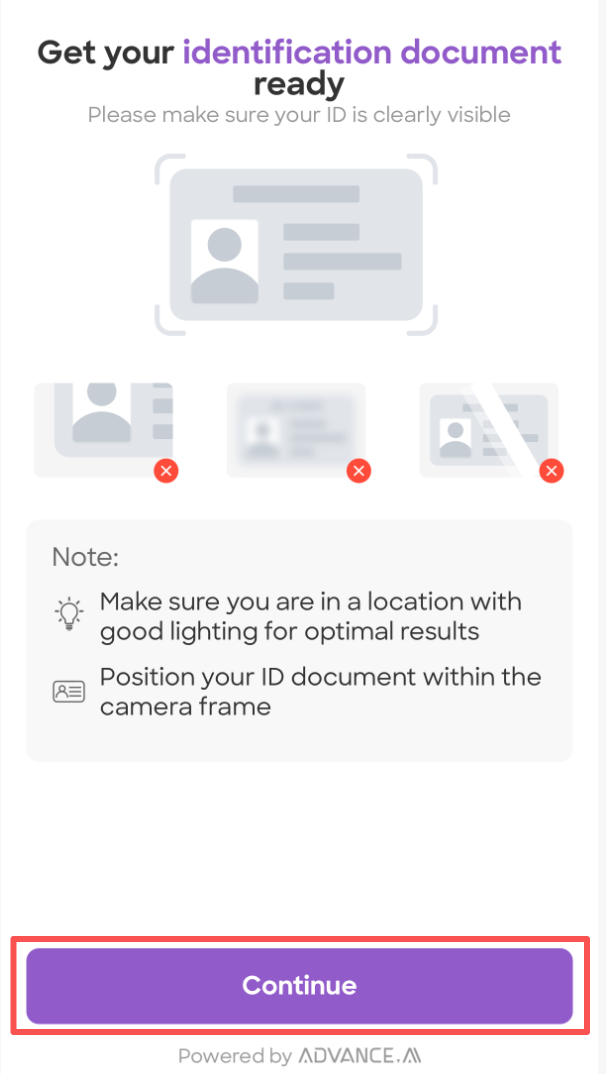
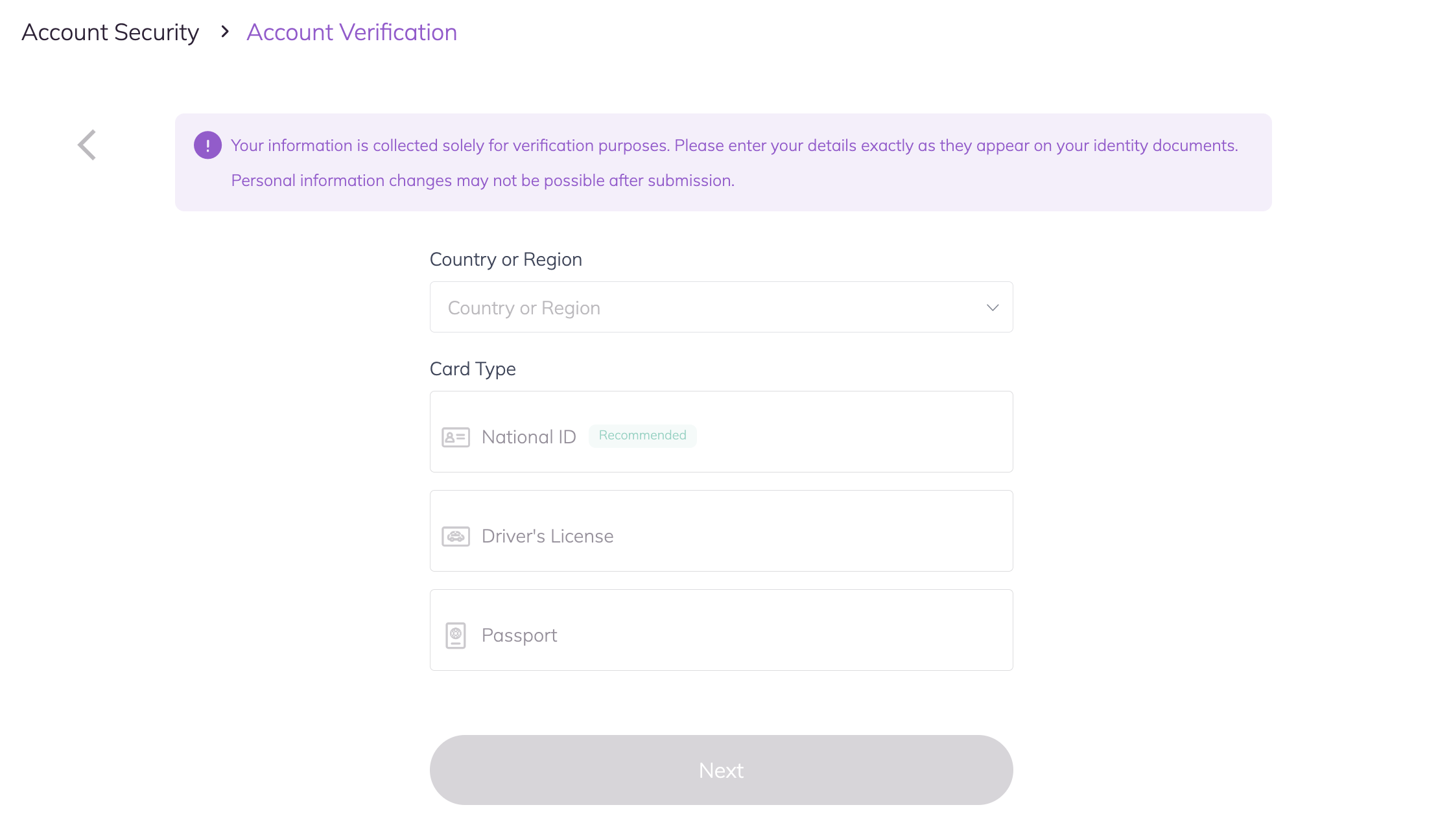
- Select Country or Region and ID Card Type for verification, then click [Next] to submit the documents following the instructions and complete the verification.
APP Version Guide
1. How to Register an AscendEX Account
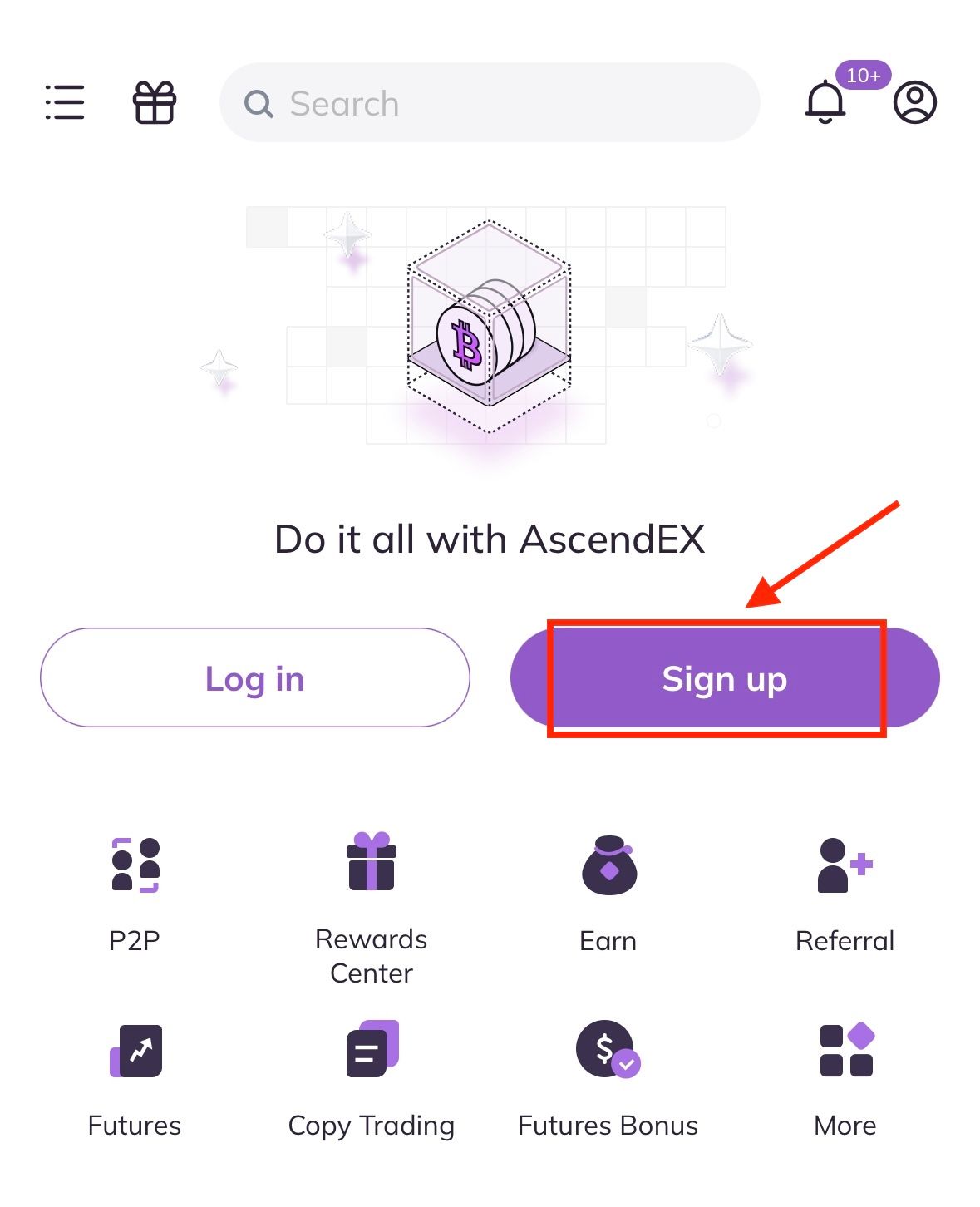
Open the AscendEX App you downloaded, click [Sign up] on the home page to registration page, you can choose to sign up using an email address or a phone number.
(1) Register with Email Address
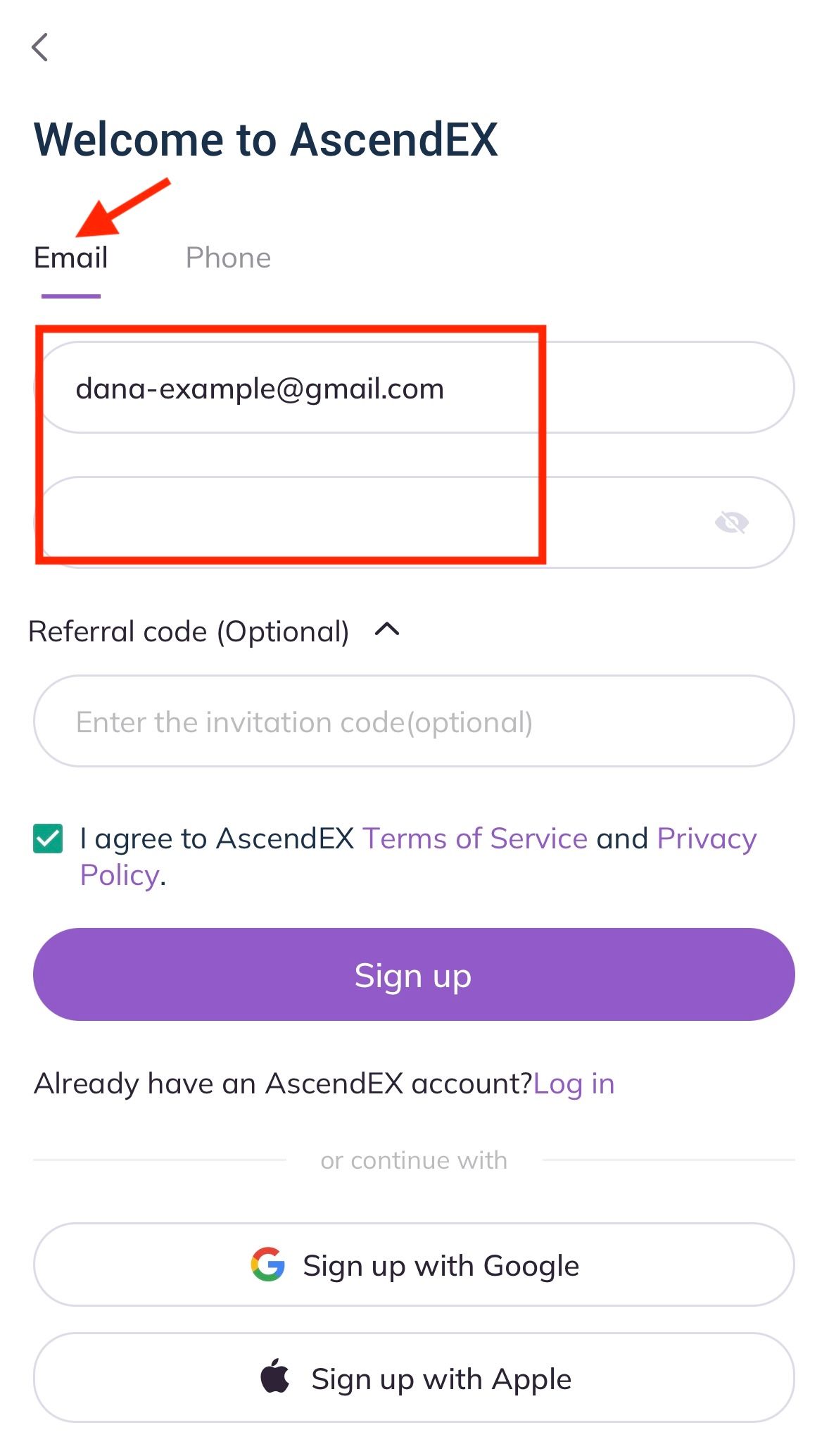
- On the registration page, click on [Email], enter your email address, set the password, enter referral code (optional); Read and agree to Terms of Service and Privacy Policy, then click [Sign up] to verify your email address.
- On the Security Verification page, enter the email verification code sent to your mailbox and click on [Confirm] to complete the registration. Now you are able to log in to start trading!
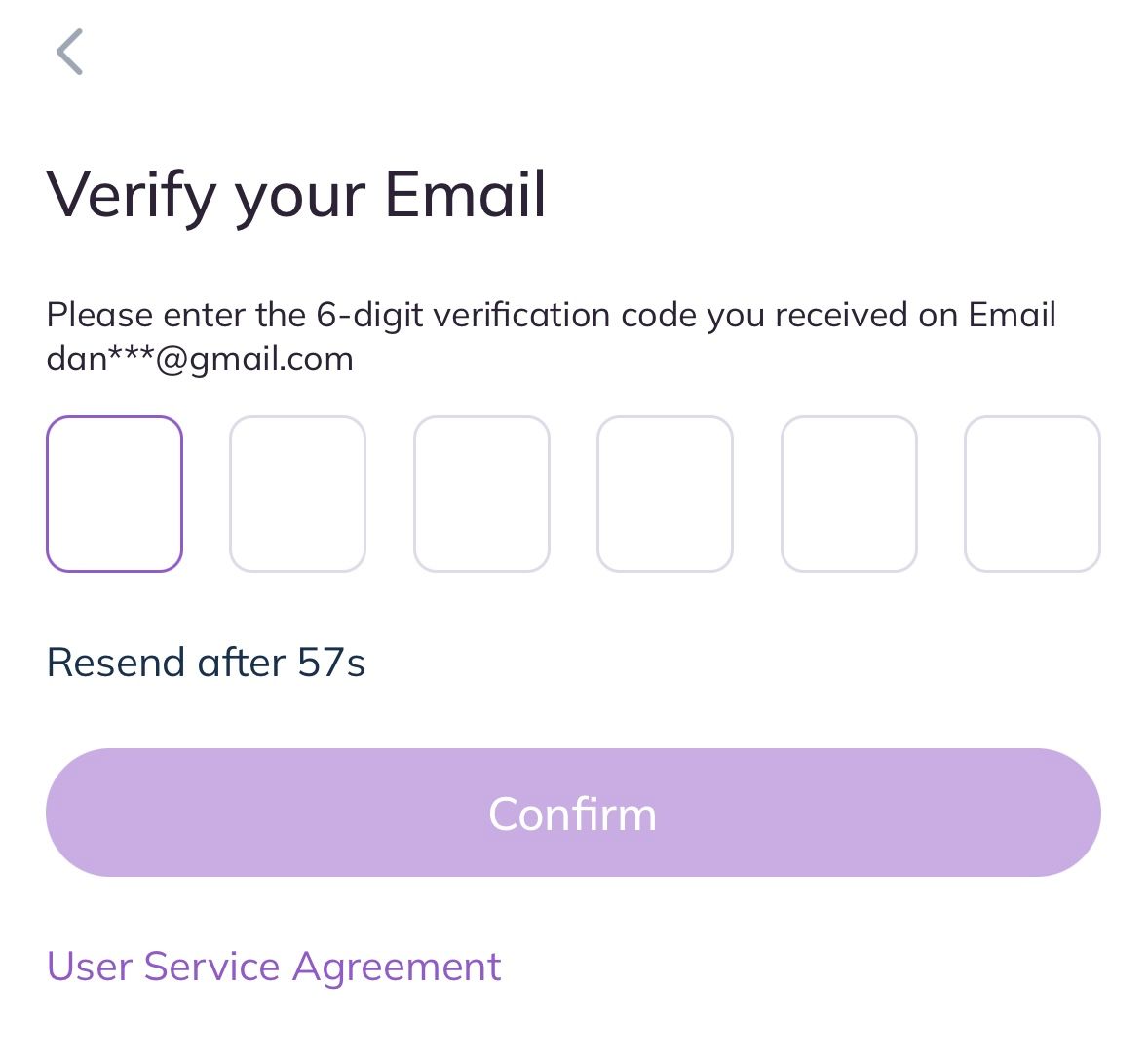
(2) Register with Phone Number
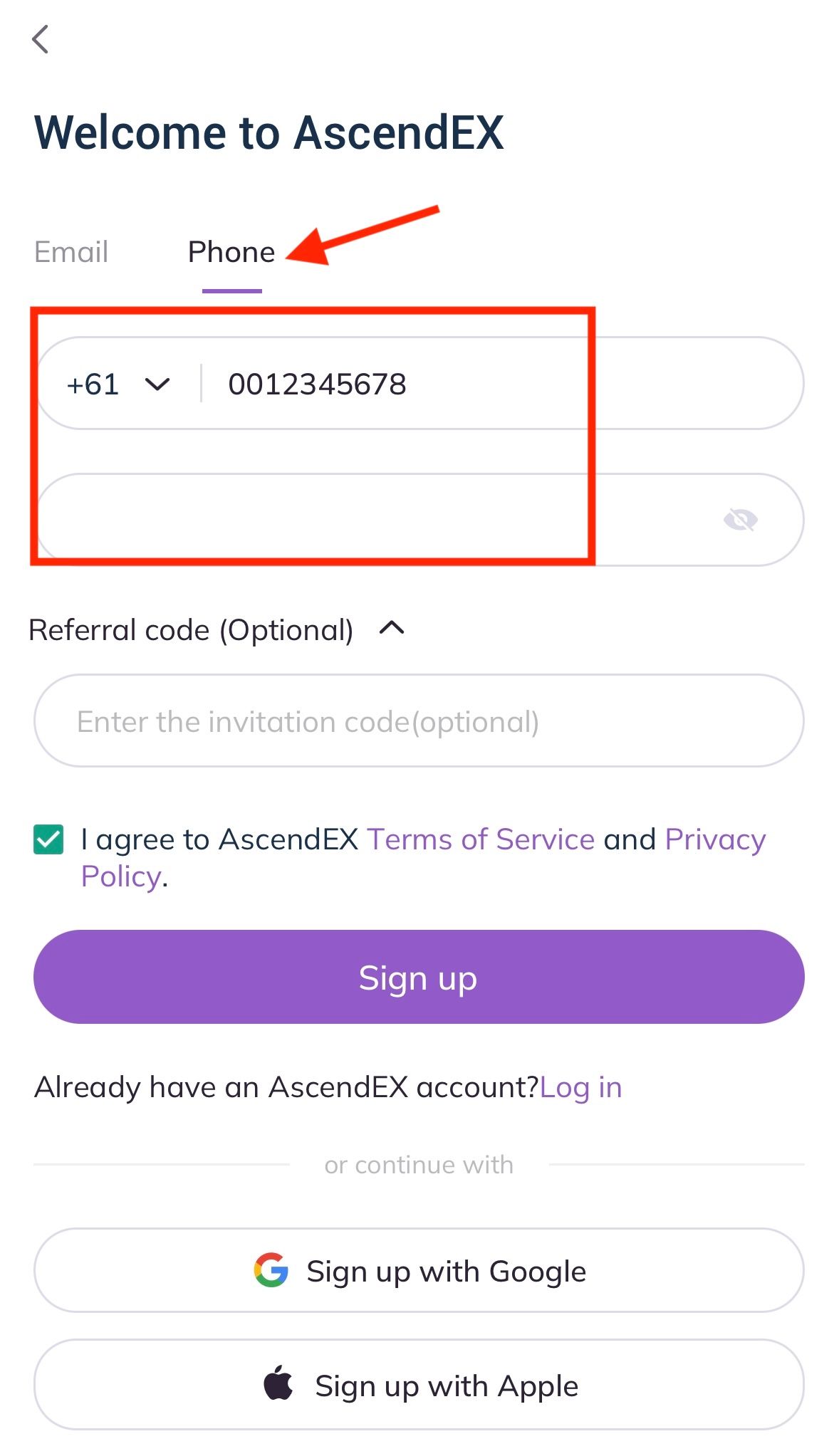
- On the registration page, click on [Phone], enter your phone number, set the password, enter referral code (optional); Read and agree to Terms of Service and Privacy Policy, then click [Sign up] to verify your phone number.
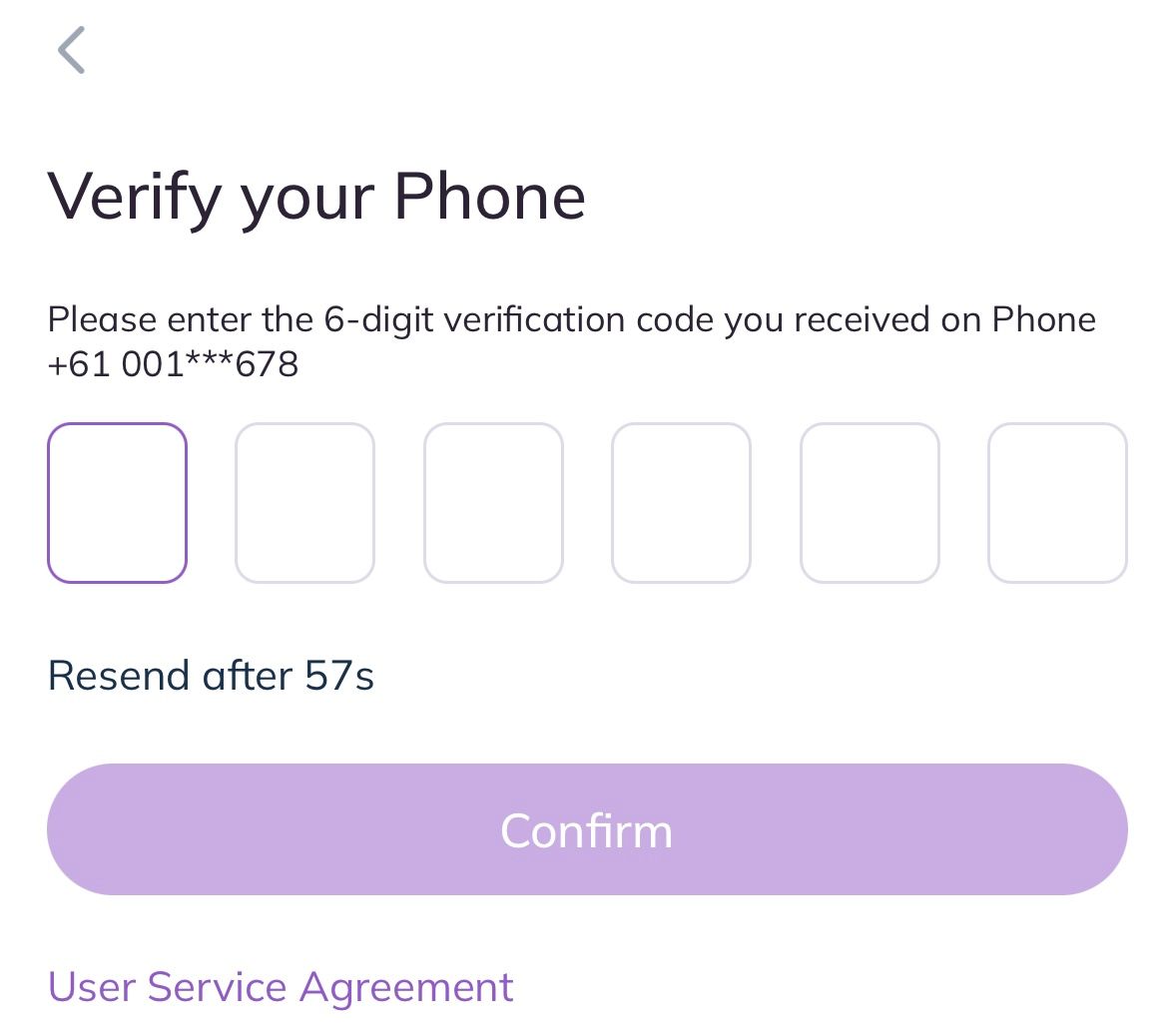
- On the Security Verification page, enter the verification code sent to your phone, and click on [Confirm] to complete the registration. Now you are able to log in to start trading!
2. How to Log in to Your AscendEX Account
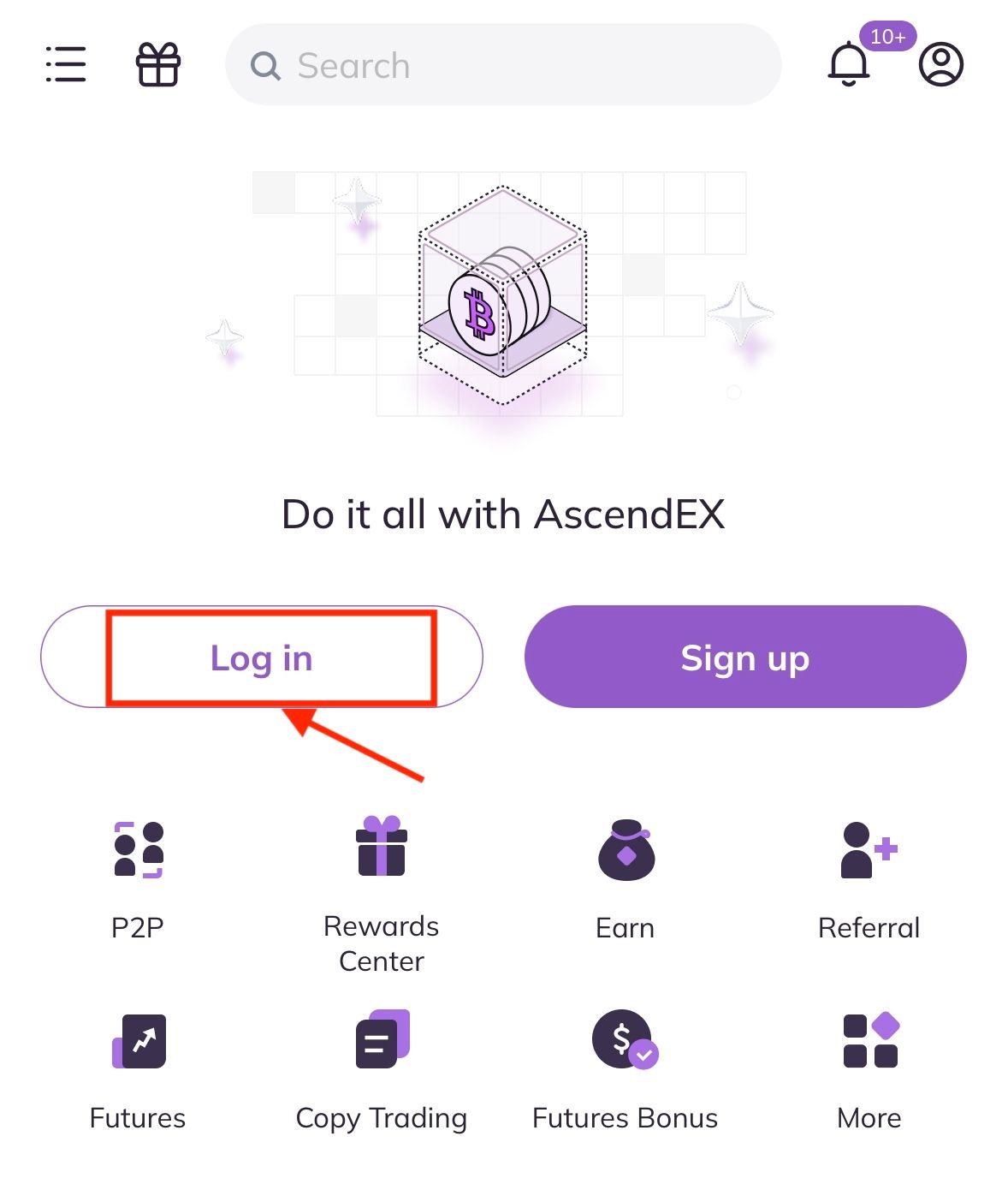
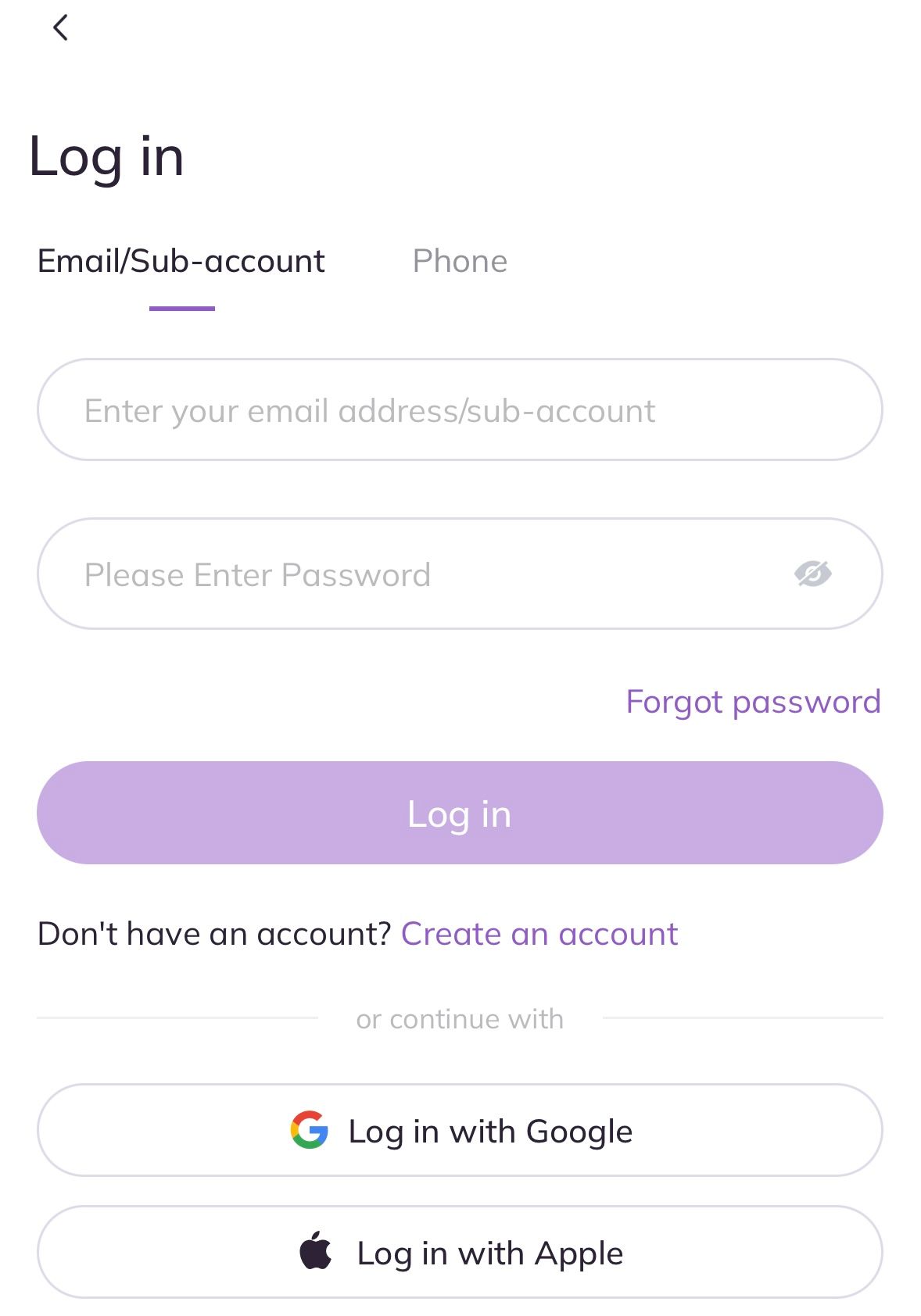
- On the app homepage, click [Log In] to begin the login process.
- On the login page, you can choose to log in using an email address or a phone number. Taking email registration as an example, enter your email address and password, then click [Log in] to complete the process.
3. How to Complete KYC Verification
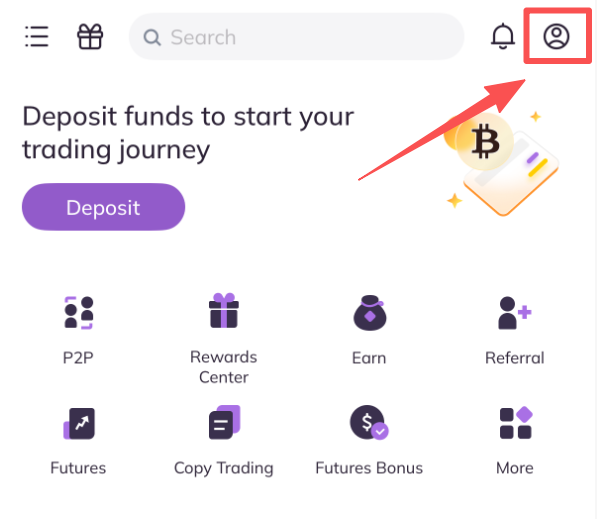
- Tap the profile icon in the top-right corner of the app homepage to enter the navigation menu.
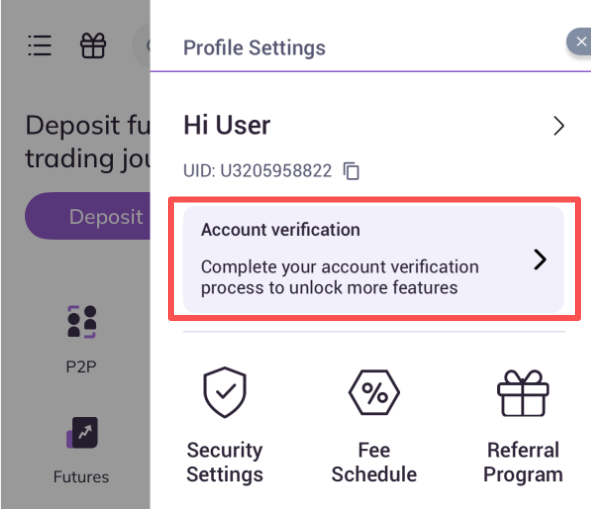
- Tap Account Verification to access the verification page.
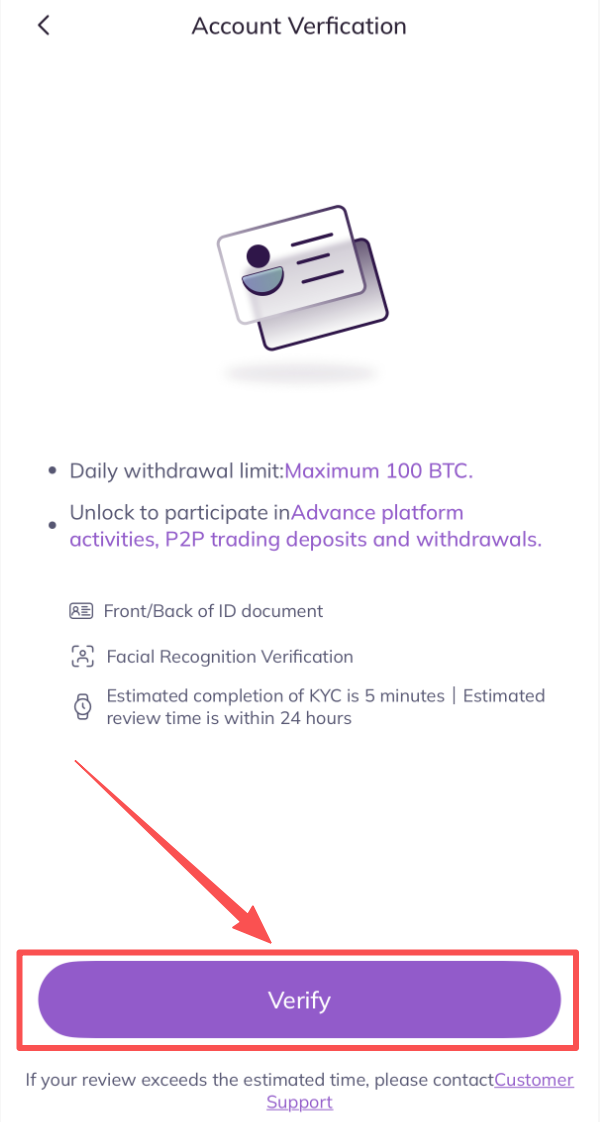
- Tap Verify to officially begin the verification process.
- Select your Country/Region and the ID Type for verification, then tap Next Step.
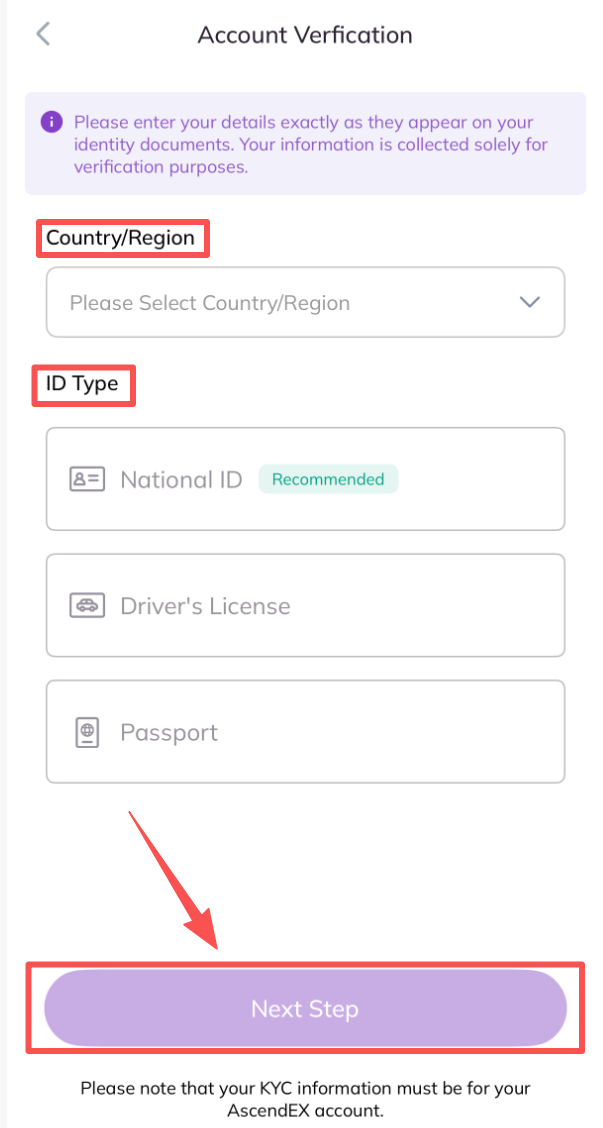
- Follow the instructions to correctly upload photos of the front and back of the selected document, complete the face recognition, and then wait for the verification result.